
Most businesses running Google Ads are optimizing for the wrong thing. They track form submissions, count phone call triggers, and celebrate click-through rates while Google's machine learning algorithm quietly trains itself to find more of the same: high-volume, low-quality conversions that look good on a dashboard but rarely turn into revenue.
The fix isn't a new campaign structure or a smarter keyword list. It's a data feedback loop, specifically, the one HubSpot's native Google Ads integration is built to create.
In this guide, we'll walk through exactly how to connect HubSpot to Google Ads, how the offline conversion feedback loop works in practice, and why this integration is one of the highest-leverage optimization moves available to service businesses and B2B advertisers.
Why Standard Google Ads Optimization Falls Short
Google's Smart Bidding strategies Target CPA, Maximize Conversions, Target ROAS are genuinely powerful. But they are only as intelligent as the conversion signals you feed them.
Most advertisers send Google one of three conversion signals:
- A form submission (someone filled out a contact form)
- A page visit (someone landed on a thank-you page)
- A phone call trigger (someone clicked a call button)
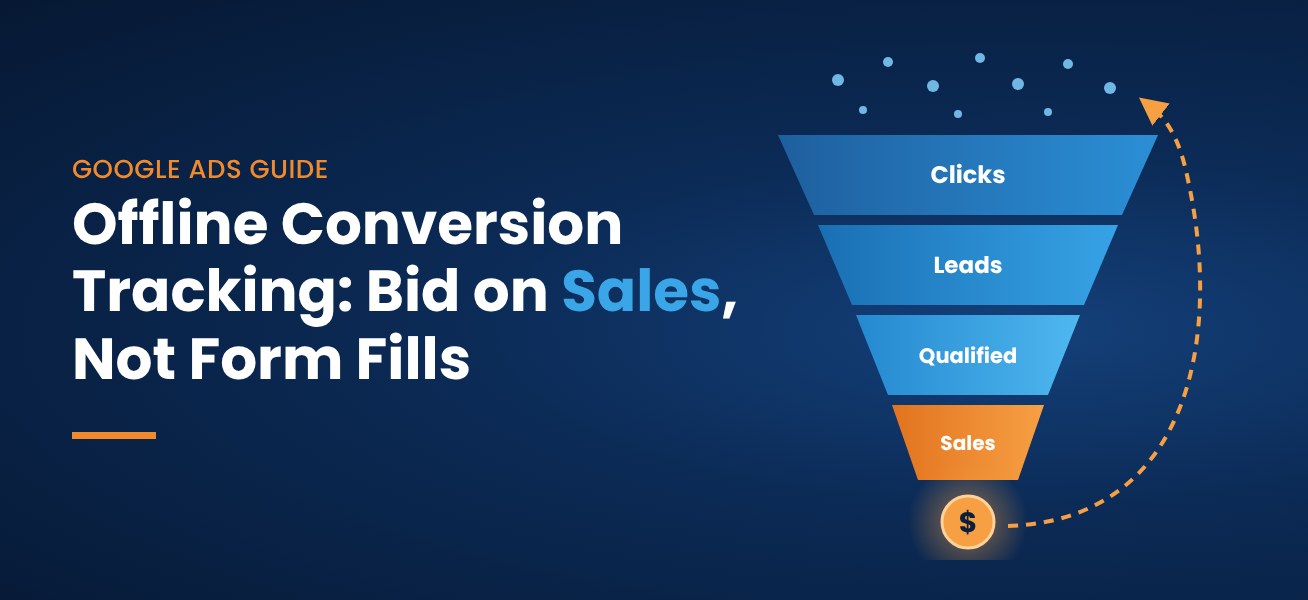
None of these signals tell Google whether the person who submitted that form was a genuinely qualified prospect or a competitor checking your pricing. They tell Google that the click "worked" and Google's algorithm responds by finding more people who behave the same way.
The result is a gradual degradation of lead quality over time: more volume, higher cost-per-acquisition, and a growing gap between what the campaign reports and what the sales team actually sees.
HubSpot's Google Ads integration is designed to solve this by replacing surface-level conversion signals with a richer data signal: the qualified lead.
What the HubSpot–Google Ads Integration Actually Does
HubSpot's native Google Ads integration connects your CRM data to your Google Ads account through two core mechanisms:
- Offline Conversion Import: Passes CRM-verified conversion events like a lead being marked as Marketing Qualified (MQL) or Sales Qualified (SQL) back into Google Ads as enriched conversion signals.
- Customer Match: Syncs HubSpot contact lists to Google Ads audiences, allowing you to target or suppress specific segments across Search, YouTube, Gmail, and Display.
The offline conversion import is where the real optimization leverage lives. By feeding Google qualification data from your CRM, you shift Smart Bidding's objective from "find people who fill out forms" to "find people who become qualified leads." That distinction compounds over time.
How to Connect HubSpot to Google Ads: Step-by-Step
The integration requires setup work in both platforms. Follow these steps in order — skipping steps or working out of sequence is the most common cause of data sync failures.
Phase 1: Prepare Your Google Ads Account
- Enable auto-tagging in Google Ads. Auto-tagging appends a unique Google Click ID (GCLID) to every ad click URL. This GCLID is what HubSpot uses to tie a contact record back to the exact ad, keyword, ad group, and campaign that generated the click — without it, offline conversion import cannot function. To enable it: in Google Ads, go to Admin > Account settings and check the "Auto-tagging" box.
- Create your conversion actions in Google Ads. Navigate to Goals > Conversions > Summary, then click "+ New conversion action" and select "Import" as the conversion source. Choose "CRMs, files, or other data sources," then select "Track conversions from clicks." Name your conversion actions to match your qualification stages (e.g., "HubSpot MQL," "HubSpot SQL"). Set the category to "Submit lead form" and the count to "One" per click. You do not need to install a tag, HubSpot will populate these via the API after the integration is live.
- Confirm your Google Ads account has conversion access. The Google account you use to connect HubSpot must have Standard or Admin access in Google Ads. Read-only access will cause the integration to fail.
Phase 2: Connect Google Ads Inside HubSpot
- Navigate to the Google Ads integration settings. In HubSpot, go to Settings (gear icon) > Marketing > Ads. Click "Connect account" and select Google Ads from the list of available ad networks.
- Authenticate with Google. You will be redirected to a Google sign-in screen. Log in with the Google account that has Standard or Admin access to the Google Ads account you are connecting. Grant the requested permissions. HubSpot requires access to your Google Ads account to read campaign data and write conversion events.
- Select the correct Google Ads account. If you manage multiple Google Ads accounts (MCC), HubSpot will prompt you to select which account to connect. Choose the account that contains the campaigns driving leads to the HubSpot forms you want to track.
- Enable ad tracking and auto-tagging confirmation. HubSpot will check that auto-tagging is active on your Google Ads account. If it is not already enabled, HubSpot will prompt you to turn it on or will activate it automatically depending on your account settings. Confirm this step before proceeding.
- Install the HubSpot tracking code on your website (if not already present). The HubSpot tracking pixel must be installed on any landing page or website page where Google Ads traffic arrives. This is what allows HubSpot to capture the GCLID from the URL and associate it with the contact record created when a form is submitted. If you're using HubSpot-hosted pages, the tracking code is already included.
Phase 3: Set Up Offline Conversion Sync
- Map HubSpot lifecycle stages to Google Ads conversion actions. In HubSpot's Ads settings, go to the "Conversion events" section under your connected Google Ads account. Here you will map HubSpot events such as a contact reaching MQL or SQL lifecycle stage to the corresponding conversion actions you created in Google Ads (Step 2 above). Each lifecycle milestone you want Google to learn from needs its own mapped conversion action.
- Configure Lead Center qualification workflows. HubSpot's Lead Center is the interface where your sales and marketing team reviews incoming leads and updates their lifecycle stage. Configure your team's qualification workflow so that when a lead is marked as MQL or SQL, a HubSpot workflow automatically triggers the offline conversion sync to Google Ads. This can be set up in HubSpot's Workflows tool: trigger = contact lifecycle stage is updated, action = send conversion event to Google Ads.
- Verify GCLID capture is working. Submit a test form via a Google Ads click (use your own ad in preview mode, or use the final URL with a manual gclid parameter appended for testing). Then check the resulting contact record in HubSpot you should see a "Google Click ID" property populated under the contact's ad data. If this field is blank, your tracking code is either not installed or firing after the GCLID window closes.
- Confirm conversion data is flowing to Google Ads. After your first qualified leads sync (this requires actual qualified contacts, not just form fills), check Google Ads under Goals > Conversions > Summary. Your HubSpot-sourced conversion actions should show data within 24–48 hours of the first sync. Note: Google Ads requires a minimum of 50 offline conversion events within a 30-day window before Smart Bidding can fully use the signal in the early weeks, run Enhanced CPC or a standard Target CPA strategy while the data accumulates.
How the Feedback Loop Works Once It's Live
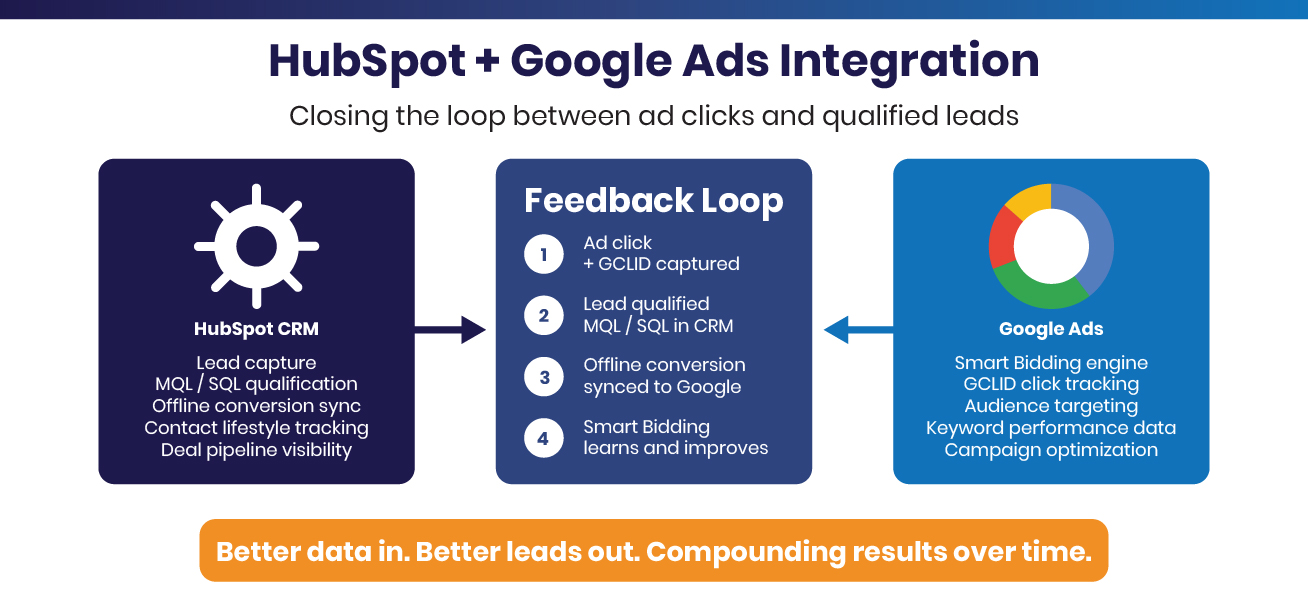
Once the integration is active, here is the end-to-end data flow:
- A prospect clicks your Google ad. Google records the click and attaches a unique GCLID to the URL.
- The prospect lands on your website and submits a form. HubSpot captures the GCLID from the URL and stores it against the new contact record, tying that person back to the exact keyword, ad, ad group, and campaign that generated the click.
- Your team qualifies the lead in HubSpot's Lead Center. When a team member updates the contact's lifecycle stage to MQL or SQL, HubSpot's workflow fires automatically.
- HubSpot sends the qualification event to Google Ads as an offline conversion. Google receives a signal that the GCLID associated with this contact produced a high-quality outcome not just a form fill, but a qualified lead.
- Google's Smart Bidding algorithm updates its targeting model. It identifies patterns among the users whose clicks produced qualified leads and begins bidding more aggressively for users who share those characteristics and pulling back on segments that historically produce unqualified submissions.
This loop runs continuously in the background. Every qualified lead adds signal. Every unqualified lead that is not marked as MQL/SQL and therefore never syncs is a signal of its own: Google learns those clicks were not worth pursuing.
What This Creates Over Time: Compounding Campaign Intelligence
Standard advertisers optimize to the click. Sophisticated advertisers optimize to the qualified lead. The compounding advantage of the HubSpot feedback loop plays out across several dimensions:
- Smarter audience targeting: Google identifies shared characteristics among your qualified leads and finds more users who match going well beyond keyword match types or manual audience layering.
- Keyword-level qualification data: In HubSpot, you can see exactly which keywords generate qualified leads vs. clicks that never convert, allowing precise budget reallocation.
- Lower wasted spend: As Google's model improves, impression share concentrates on higher-intent segments, reducing cost-per-qualified-lead over time.
- Full-funnel attribution: HubSpot's deal pipeline connects marketing spend to closed-won revenue, letting you report on actual ROI, not just cost-per-conversion.
This is especially impactful for B2B advertisers and local service businesses categories where a single qualified lead may represent thousands of dollars in contract value, and where separating real prospects from tire-kickers is the difference between a profitable campaign and a cost center.
Common Setup Mistakes and How to Avoid Them
- Auto-tagging disabled: The single most common failure. If auto-tagging is off in Google Ads, GCLIDs are never appended and HubSpot has nothing to capture. Always verify this first.
- Tracking code fires after GCLID expires: GCLIDs are valid for 90 days, but they must be captured at the moment the landing page loads. If your HubSpot tracking code loads asynchronously after a redirect or tag manager delay, GCLIDs may not be stored. Test with a direct form submission and verify the contact record.
- Conversion actions not set to "Import" type: If you created your conversion actions in Google Ads as website-tag-based actions instead of import actions, HubSpot cannot write to them. Delete and recreate as Import type.
- Insufficient conversion volume: Smart Bidding cannot effectively use offline conversion signals until it has accumulated enough data (typically 50+ events per 30 days). In early weeks, monitor for data arrival but do not expect bidding behavior changes until the threshold is reached.
- Inconsistent lead qualification habits: The loop only works if your team consistently updates lifecycle stages in HubSpot. If qualification is informal or happens in a separate spreadsheet, the signal never reaches Google. Build the workflow into your CRM process from day one.
What You Need to Get Started
- HubSpot Marketing Hub Starter (or above) the Google Ads integration and ads reporting are available on all paid tiers of Marketing Hub.
- A Google Ads account with Standard or Admin access on the connecting Google account.
- Auto-tagging enabled in Google Ads.
- The HubSpot tracking code installed on your landing pages.
- A defined lead qualification process and team commitment to updating lifecycle stages in HubSpot consistently.
The Bottom Line
Google Ads is a powerful platform. But it is only as powerful as the data you give it. Most advertisers hand Google a blunt signal — form fill — and then wonder why lead quality drifts over time. The HubSpot integration replaces that blunt signal with the sharpest one available: a human-verified, CRM-confirmed qualified lead.
Close the loop. Feed Google better data. The algorithm will do the rest.
Need help setting up the HubSpot–Google Ads integration for your business? Conversion Pipeline specializes in connecting your CRM and paid media into a single, accountable revenue system. Visit conversionpipeline.com to learn more.